
Functional 3D printing guide
3D Print Tolerance and Clearance: How to Design Parts That Fit
Substantially updated 2026-10-10. First published 2026-09-09.
A CAD model can be dimensionally correct and still produce parts that do not fit together.
Source and further reading
Formlabs publishes process-specific design specifications with the printer, resin and layer assumptions attached. Use documents like these as evidence for the stated system only, then validate your own machine, material and orientation rather than treating one vendor's clearance as a universal rule.
Worked fit example
Suppose a test peg designed at 10.00 mm measures 10.12 mm and a matching test
hole designed at 10.40 mm measures 10.22 mm. The printed radial clearance is
only (10.22 - 10.12) / 2 = 0.05 mm, even though the CAD radial
clearance was 0.20 mm. If the desired measured radial clearance is 0.20 mm and
the peg process remains stable, the hole would need a measured target of 10.52
mm. Use a new local test to determine the CAD change rather than assuming the
observed error transfers perfectly.
Record whether values are diametral or radial. “Add 0.2 mm clearance” can mean 0.2 mm across the diameter or 0.2 mm on each side, which produces different geometry. Keep orientation, material, profile, cooling and measurement method fixed during the experiment, then validate more than one sample before applying the result to a long print or critical assembly.
Validate with a representative fit
A designed 0.20 mm clearance may not produce the same result across materials, axes or orientations. Print a small pin-and-hole or mating-feature test using the intended profile, measure it, and record the result before committing it to a functional assembly.
A pin may print slightly oversized. A hole may print slightly undersized. Two parts that meet perfectly in the design may fuse, wobble or require more force than intended after printing.
That is why functional 3D printing needs clearance and tolerance planning.
The useful question is not “What is the one correct gap for every print?” It is:
What fit do I want, and what does my own printer produce with this material and these settings?
Use the 3D Print Tolerance & Clearance Calculator to turn that answer into model dimensions.
Tolerance and clearance are not the same thing
Tolerance is the acceptable variation around an intended dimension. A nominal 10 mm feature may print slightly above or below 10 mm.
Clearance is an intentional gap between mating parts. If a 10 mm pin needs to move inside a hole, the hole must be larger than the pin by a planned amount.
For round features, diametral clearance is the total difference between hole diameter and pin diameter. Radial clearance is the gap on one side of the pin.
For example, a 10.00 mm pin inside a 10.30 mm hole has 0.30 mm diametral clearance and 0.15 mm radial clearance on each side. Confusing these two values is a common reason that a design ends up twice as loose or twice as tight as intended.
Choose the intended fit first
Do not start by choosing a random number. First decide what the two parts need to do.
Clearance fit
Use clearance when parts need to move, slide, rotate or assemble easily. Examples include hinges, moving printed assemblies, removable lids, guide slots, and parts that need easy assembly after printing. More clearance usually makes assembly easier, but too much can create visible wobble or play.
Close or sliding fit
Use a close fit when parts should move with limited looseness, such as sliding covers, controlled guides and moving mechanisms with a small amount of play. This is where printer calibration matters most. A close fit designed on one printer may bind on another printer or after a change of material or profile.
Snug fit
A snug fit is intended to assemble with light resistance and remain in place without a strong press. It suits removable panels, friction-fit caps and light-duty locating features. Test it before committing to a large part.
Interference or press fit
An interference fit intentionally uses negative clearance: the mating features overlap in their nominal dimensions and are forced together. Use interference carefully. Material, layer direction and feature shape can affect whether the part cracks, deforms, assembles successfully or becomes impossible to assemble.
Start with a calculation, then calibrate
The basic calculation is simple:
Target hole diameter = mating pin diameter + desired diametral clearance
If a 10.00 mm pin needs 0.30 mm diametral clearance, the target hole diameter is 10.30 mm.
The harder part is that your printer may not produce those dimensions exactly. A useful calibration print contains known outside features and holes. Measure the printed result with suitable calipers, then compare it with the intended dimensions.
For example, an intended 10.00 mm outside diameter that measures 10.08 mm has an outside error of +0.08 mm. If you need the final printed pin to be 10.00 mm, model it slightly smaller to compensate. If a hole intended as 10.30 mm prints as 10.20 mm, its hole error is -0.10 mm. The calculator performs these calculations and keeps the sign convention visible.
Why nominal dimensions often do not print exactly
Printed dimensions can vary because of nozzle or light-source behaviour, extrusion width and flow settings, material shrinkage and cooling, resin curing and post-processing, layer height, part orientation, hole geometry and bridging, slicer compensation settings, printer calibration and mechanical condition.
This is why a tolerance value copied from another printer, material or online discussion should be treated as a starting point rather than a promise.
Record which component sets the target
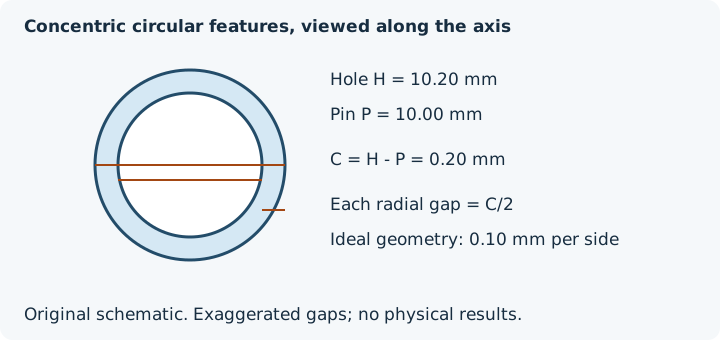
With fixed hardware, use its measured/selected outside diameter D: target produced hole H = D + C. With both parts printed, choose target produced pin P: H = P + C. C is diametral; C/2 is radial only for ideal concentric circles. The nominal external hardware field must not override P in a printed pair.
Illustrative recorded arithmetic: a designed 10.00 mm hole has comparable readings 9.68, 9.72 and 9.70 mm. Mean = 9.70 mm; min = 9.68; max = 9.72; range = 0.04 mm; hole error eH = -0.30 mm. A designed 10.00 mm pin measuring 10.10 mm gives eP = +0.10 mm. For desired produced P = 10.00 and C = 0.20, H = 10.20; model hole = H - eH = 10.50; model pin = P - eP = 9.90 mm. These are assumed repeatable local errors, not InspectMesh physical test results.
Retain raw readings, instrument, measurement direction, printer/material/profile and cooling conditions in the measurement worksheet. One reading works but cannot show between-reading spread. Exclusions retain a value and reason; never pool different nominal sizes or orientations. Validate with a representative coupon and the actual counterpart after intended post-processing. Range is recorded spread, not instrument uncertainty or total manufacturing tolerance.
For more focused decisions, see bore orientation, insert-specific geometry and snap engagement and deflection. Those checks have requirements beyond a clearance calculation.
Design holes and pins with the whole feature in mind
A hole is not just a number in CAD. Consider its orientation during printing, whether its top bridges, whether it is circular, slotted or shaped for a screw, wall thickness around the hole, load, and whether a chamfer or lead-in would make assembly easier.
A small chamfer can make a pin easier to insert. A thicker boss can make a hole less likely to split. A short test coupon can save a failed full-size enclosure. Before printing, use the STL Wall Thickness Checker to inspect thin areas around holes, clips and other functional features.
Test the final geometry before slicing
After changing dimensions, export the final STL or 3MF and check it again. Use the STL Dimensions Checker to confirm that the exported model retains the intended dimensions. Then use STL Print Preflight to check mesh condition, fit, wall-thickness warnings and other file-level issues before slicing.
- choose the intended fit;
- calculate nominal model dimensions;
- print and measure a small calibration test;
- apply the measured error;
- export the final model;
- verify dimensions and geometry;
- print the finished part with the same material and settings used for calibration.
A calculator provides dimensions, not certainty
A tolerance calculator can make the design decision clearer, but it cannot know exactly how every printer, material and orientation will behave. For decorative parts, a broad starting point may be enough. For mechanisms, enclosures, threaded features or parts that matter, calibration and testing are part of the design process.
The goal is not to find a magic gap. It is to replace repeated guesswork with a documented, measured workflow.
FAQ
What clearance should I use between 3D printed parts?
The right clearance depends on your printer, material, orientation and intended fit. Start with an editable value, then confirm it with a small calibration test using the same printer and settings as the final part.
What is the difference between radial and diametral clearance?
Diametral clearance is the total difference between a hole and its mating pin diameter. Radial clearance is the gap on one side, so it is half of the diametral clearance.
Why are 3D printed holes often smaller than designed?
Hole dimensions can change because of extrusion, curing, shrinkage, orientation and slicer settings. Measuring a calibration print is more reliable than assuming nominal CAD dimensions will print exactly.
Does a tolerance calculator guarantee a printed fit?
No. It calculates dimensions from your chosen assumptions. Test prints, printer calibration, material behaviour and final print settings still determine the real fit.