
G-code preflight guide
How to Check G-code Before You Start a 3D Print
Substantially updated 2026-10-10. First published 2026-09-10.
Once you slice a model, the STL or 3MF file is no longer the file your printer follows.
Preserve the reviewed file unchanged after approval; regenerate and review again if the source project or profile changes.
Symptom-to-review table
| Preview symptom | Review | Do not assume |
|---|---|---|
| First extrusion is far from the bed area | Origin, machine profile and starting commands | The viewer and printer share coordinates |
| Required region disappears on some layers | Feature width, slicing result and source geometry | The mesh repair alone will restore it |
| Unexpected long travel through the part | Retraction, travel path and collision context | Every non-extruding move is harmless |
| Temperature changes mid-job | Tool/material transitions and command context | The value is suitable for the loaded material |
Compare the preview with the source model and slicer project. Confirm the intended printer, firmware dialect, tool count, material and work coordinate assumptions before transfer. If a command or motion cannot be explained, regenerate from the known project and profile rather than editing production G-code by guesswork.
What G-code contains
A typical 3D-printing G-code file contains a mixture of:
- movement instructions for the print head;
- extrusion and travel moves;
- layer changes;
- hotend and bed temperature commands;
- homing and setup commands;
- comments written by the slicer;
- printer-specific start and end sequences.
The exact format is not identical across every slicer or printer firmware. Two
files that both end in .gcode can contain different comments,
custom commands and coordinate conventions.
That is why a useful checker should explain what it recognised and what it could not interpret.
Check the file before sending it to the printer
The G-code Preflight Checker can help you review:
- file size and readable slicer metadata;
- estimated print time when the slicer provides it;
- declared filament use when available;
- parsed layer count and Z range;
- parsed X/Y/Z toolpath extents;
- common hotend and bed temperature targets;
- coordinate and extrusion modes;
- unsupported commands that limit analysis.
This is not a replacement for your slicer preview. Think of it as a quick independent inspection step, especially when the file came from someone else, was sliced on another computer or has been modified.
Compare toolpath size with your printer
A model can fit your printer in CAD and still produce unexpected G-code if the wrong printer profile, scale or coordinate setup was used during slicing.
The toolpath extents in G-code show the range of movement the parser found. Compare them with the usable dimensions of the intended printer.
If the parsed extents exceed the build volume you entered, stop and check the slicer profile before printing.
An in-bounds result is still not a guarantee. Start G-code, coordinate offsets, purge routines and printer-specific behaviour can affect how the machine uses its build area.
For the earlier model-level check, use the STL Dimensions Checker or 3MF Dimensions Checker.
Review layers and the 2D toolpath preview
A layer preview can reveal whether the parsed print path looks broadly like the object you expected.
Use it to check:
- whether extrusion paths appear across the expected area;
- whether the first and final layers occur at sensible heights;
- whether the overall shape is obviously wrong;
- whether a selected layer has missing-looking toolpaths.
A browser preview cannot reproduce every slicer feature. Custom commands, arcs, multiple tools or vendor-specific macros may limit what it can display. If the tool reports a limitation, return to the slicer that generated the file and inspect its native preview.
Check temperature targets without judging them in isolation
G-code commonly includes commands that set hotend and bed targets. The checker can show the temperatures it finds, including commands that wait for a target before continuing.
That is useful for catching obvious surprises, such as loading a file intended for a different material profile.
But a temperature number is not enough to judge a print. The correct setting depends on the material, printer, nozzle, enclosure, cooling and manufacturer guidance. Do not edit a G-code file merely because a generic checker displays a value you did not expect.
Read parser limitations carefully
G-code is not a single perfectly uniform language. Printer firmware, slicers and custom start/end scripts can add commands that a general analyser does not support.
A limitation warning does not automatically mean the file is broken. It means the tool cannot make a reliable claim about that part of the file.
Examples include:
- vendor-specific commands;
- macros and conditional logic;
- arc moves;
- unusual coordinate modes;
- multi-tool workflows;
- custom purge, probe or calibration routines.
When a file has important unsupported commands, use the checker for the information it can show, then confirm the final preview in the slicer and on the intended printer workflow.
G-code checking comes after model preflight
A clean G-code file does not prove that the original model was well prepared.
Before slicing, inspect the model itself:
- use STL Print Preflight or 3MF Print Preflight;
- confirm dimensions, printer fit and mesh health;
- review wall thickness and overhang risk where relevant;
- choose orientation, supports and material settings in the slicer;
- inspect the finished G-code before printing.
This sequence catches problems at the stage where they are easiest to understand and correct.
Treat G-code as a final review, not an execution decision
A G-code checker is useful because it lets you inspect the exact file that will drive the printer. It can reveal useful facts about paths, dimensions, layers and common settings without running any commands.
It cannot know your printer’s condition, firmware configuration, filament state, bed preparation or physical environment.
Use it as the final file-level review before printing—then rely on your slicer profile and printer-specific knowledge for the actual print decision.
Use the embedded time estimate as an estimate
The supported G-code parser reads declared slicer metadata where present; it does not recreate a printer's motion planner. A sliced-file duration has more job context than an STL volume, yet acceleration, firmware limits, warm-up and pauses can still make real elapsed time differ.
Illustrative observation: the slicer says 5 hours and a comparable completed job took 6 hours. An observed correction factor is 6 / 5 = 1.2. A later 4-hour estimate becomes 4.8 hours before any separately omitted setup allowance. One observation is weak evidence; track comparable jobs and avoid transferring a factor from a small detailed part to a large continuous extrusion.
Plan the finish instant in your chosen timezone. That tool adds elapsed duration across midnight and daylight-saving boundaries, accepts supported duration metadata and leaves it editable. It does not monitor the printer, send reminders or know when a job actually finishes. Keep safety and running-printer decisions with the printer's operating guidance.
Worked next-step checklist
Hypothetical job: a reviewed 80 mm part is sliced for a different printer profile, with a 235 °C temperature target and a duration comment. Those numbers are observations to investigate, not a verdict that a printer or material can use them.
| Check | Observation to record | Next step |
|---|---|---|
| Profile and firmware | Printer, tool count, coordinate origin and unsupported commands | Regenerate from the intended profile if unknown or mismatched |
| Temperature | 235 °C target in this hypothetical file; loaded material not established | Compare with the exact material and machine guidance; do not guess a replacement |
| Build area | Extrusion footprint, travel, supports and purge location | Use native slicer preview and usable bed reservations; box fit is preliminary |
| Layers | First layer, changed functional features and final layer | Return to geometry review if required surfaces are missing |
| Metadata | Declared duration/material and absent fields | Keep unavailable values unknown; do not infer grams from model volume |
Geometry preflight reviews the source mesh; G-code review examines the sliced job. Neither simulates all firmware behaviour or certifies printer safety. When a relevant command cannot be interpreted, stop and use the generating slicer and printer documentation.
Use source evidence to choose the next action
Read the viewer's linear, extrusion, duration and material coverage before interpreting extents. Expand Source-line evidence, select the finding's original line and inspect the read-only excerpt. Repeated events include first/last references and a total; a bounded sample is not the entire source. Only a mapped retained motion line selects a preview layer. Mode, temperature and metadata lines should not be assigned an invented layer.
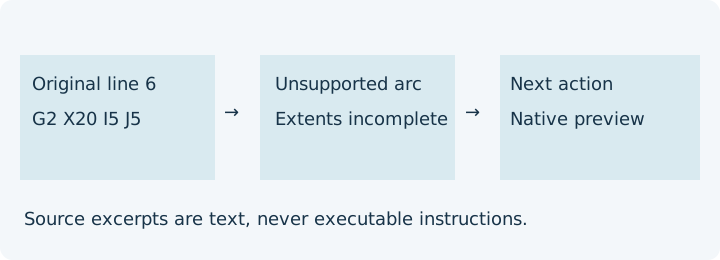
An arc or macro points to incomplete preview review; unexpected coordinate location points to min/max and travel review. For a supported estimate, review its source, units, one-run scope and any manual edit before offering it. The destination asks before applying, and cost adds a new selected run rather than multiplying every plate. Copy, JSON, PDF and print keep the same assumptions and warnings. A local byte hash identifies exact bytes, not the slicer author.
FAQ
Can I check G-code before sending it to my printer?
Yes. A G-code preflight check can show readable slicer metadata, toolpath extents, layers, temperature targets and parsing limitations. It does not replace checking the file in your slicer or confirming printer compatibility.
Does G-code contain the actual print settings?
It often contains commands and comments that reveal settings such as temperature targets, layer information and estimated print time. The exact information depends on the slicer and printer workflow.
Can a G-code checker guarantee that a print will succeed?
No. Printer firmware, machine configuration, material, calibration, start G-code, bed preparation and slicer profile all affect the real print.
Why does a G-code preview sometimes look incomplete?
Different slicers and firmware use different commands. Unsupported arcs, macros, custom commands or unusual coordinate modes can limit what a browser-based parser can reliably show.