
3MF conversion guide
How to Convert 3MF to STL for 3D Printing
Substantially updated 2026-10-26. First published 2026-09-05.
Choose whether the recipient needs the complete supported build or one placed item, then export the geometry with an explicit placement convention. Reopen the STL and check its physical dimensions in the receiving application. Keep the original 3MF for editable project and package information.
Choose scope, placement and verify before downloading
Choose the entire supported placed build or one top-level placed item in 3MF to STL Converter. Repeated placements remain distinct; a selected composite includes supported descendants. Preserve resolved placement by default. Optional minimum-corner translation records its offset and before/after bounds without changing scale or orientation.
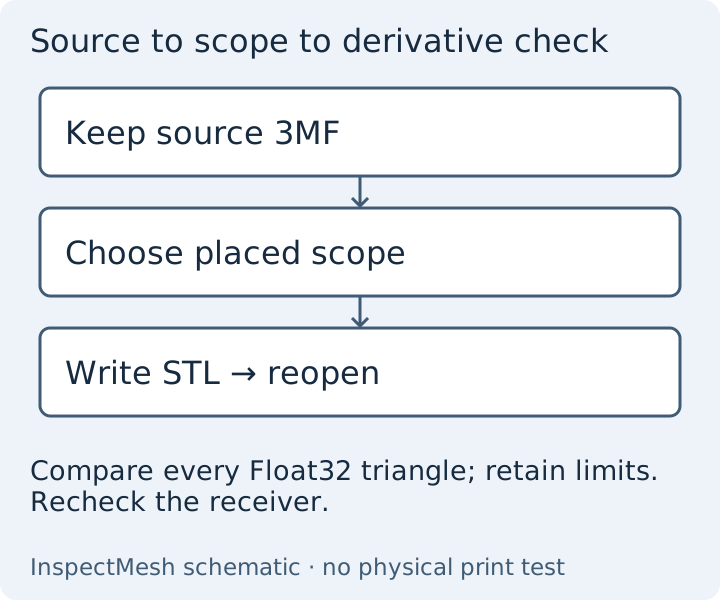
The export review compares every oriented Float32 triangle and reports count, min/max bounds, translation, resolution status and limitations. Copy, JSON and print reuse that report. This check does not validate topology, unions or every receiving application. Import the download as millimetres and check a known dimension. For decisions read combined versus individual delivery; for symptoms read size or position troubleshooting.
Verified conversion output, reopened as a real STL
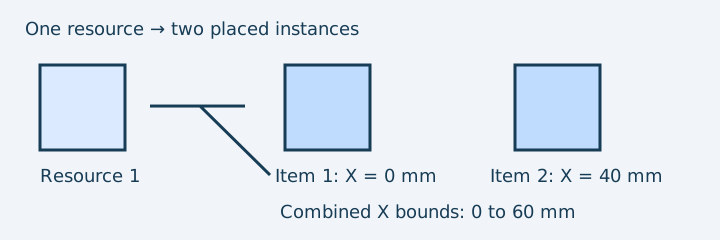
Replay the three controls directly: one placed cube, the same resource placed twice, and the declared-inch translated cube. The repeated-build control must export 24 triangles across 60 × 20 × 20 mm; the transformed control must reopen as 12 triangles with a 25.4 mm span and X bounds 50.8–76.2 mm when interpreted as millimetres.
| Source package | Reopened binary STL under mm | What to confirm |
|---|---|---|
| One placed 20 mm cube | 12 triangles; 20 mm spans | The intended build was selected |
| Two placements of the same resource | 24 triangles; 60 × 20 × 20 mm | Both placed surfaces remain, while object identity is lost |
| One-inch cube translated two inches on X | 12 triangles; 25.4 mm spans; X 50.8 to 76.2 mm | Physical coordinates are resolved before writing unitless STL |
The regression suite calls the actual converter, saves its binary bytes and parses that result as STL. It checks dimensions, triangle counts and translated coordinates, rather than accepting a download click as evidence. Download the source controls and use the explicit local conversion action; reopen your own result in the receiving application with a millimetre assumption.
Keep the original 3MF/project when colours, materials, build structure, settings or unsupported extensions matter. The single STL output does not retain those features, cannot recover missing geometry and does not certify a physical print.
Select the intended deliverable
A stored resource is not necessarily a placed part. Decide whether the recipient needs one selected object, separate parts or the entire build. InspectMesh 3MF-to-STL conversion resolves supported placed geometry and writes one binary STL for the entire build or one selected top-level placement. Nested components remain together. Multiple-file export is not offered; repeat explicit individual exports if needed.
| Information | This STL export | Recipient check |
|---|---|---|
| Mesh triangles | Supported resolved surfaces | Compare visible features and counts |
| Units/transforms | Normalised millimetre coordinates with placements applied; STL stores no unit | Import as millimetres and check a known dimension |
| Build identity | Flattened into one mesh; disconnected shells may remain | Compare intended parts and arrangement |
| Materials, colours, settings | Not retained in ordinary STL | Keep 3MF when these are required |
Worked declared-inch control
Use the owned declared-inch 3MF. It contains a one-unit cube declared in inches and translated two units on X. The resolved cube is 25.4 mm per side, positioned from X = 50.8 to 76.2 mm. The span remains 25.4 mm despite translation.
- Inspect the source in 3MF preflight and record the resolved dimensions.
- Convert the supported build and save a separately named STL.
- Open that STL in the receiving application, explicitly using millimetres.
- Confirm the 25.4 mm reference, placement and intended parts; inspect topology and sliced layers.
The unit and transform values are generated fixture ground truth and resolver checks, not a physical print experiment. A receiving importer may recenter or drop a part, so compare placement as well as spans. Do not claim a working import proves every package feature survived.
Receiving check
| Compare | Why |
|---|---|
| Selected source scope versus exported item | Prevent delivery of the wrong placement |
| Expected physical bounds versus reopened STL | Catch conversion or receiver assumptions |
| Intended placement versus received placement | Distinguish translation from resizing |
| Required project information versus geometry-only delivery | Confirm that STL is an appropriate output |
Use placed-item extraction for selection, combined versus individual delivery for file scope, and wrong-size or position diagnosis for a receiving disagreement.
When to stop conversion
If required build objects are missing, an extension is unsupported or the recipient needs an editable project, return to the original application. Investigate missing 3MF objects before flattening the package. Conversion is not mesh repair and cannot invent missing intended geometry.
The 3MF Core Specification describes resource, build, unit and transform semantics; reviewed 7 October 2026. Application support must be checked separately. Convert supported geometry locally when a single geometry-only file is the agreed deliverable.
FAQ
Is converting 3MF to STL less accurate?
The resolved triangle geometry can be exported accurately, but STL is less complete because it cannot retain 3MF units, colours, materials, print settings or build-item structure.
Will a 3MF with several parts become several STL files?
This converter offers the entire supported placed build or one selected top-level placed item as one STL. Keep the original 3MF if you need its separate parts or assembly structure.
Should I keep the original 3MF file?
Yes. Keep it whenever you may need its declared units, metadata, colours, materials, separate build items or slicer settings later.