
Opening and cavity diagnosis
Slicer Fills a Hole in an STL
If an intended channel disappears in sliced layers, inspect the source opening and the first filled layer separately. A watertight result does not prove that the opening is present: a solid cap can be watertight too. Overlapping solids can also produce filled toolpaths even when the intended channel is visible in one shell. Only after checking the mesh should you test whether the passage is too small for the selected extrusion profile.
Three controlled models with the same outer envelope
| Downloadable STL | Source geometry | Measured first layer |
|---|---|---|
| Open through-channel | Closed 20 × 20 × 10 mm outer shell; 6 × 6 mm passage; 32 triangles, one shell, zero open edges. | No model extrusion segment within 1 mm of the passage centre. |
| Solid cap control | Solid 20 × 20 × 10 mm box; 12 triangles, one shell, zero open edges. | Six model extrusion segments cross the central 1 mm radius. |
| Overlapping solid | The open channel plus an 8 × 8 × 10 mm intersecting cube; 44 triangles, two shells, zero open edges. | Six central extrusion segments, matching the solid box in this run. |
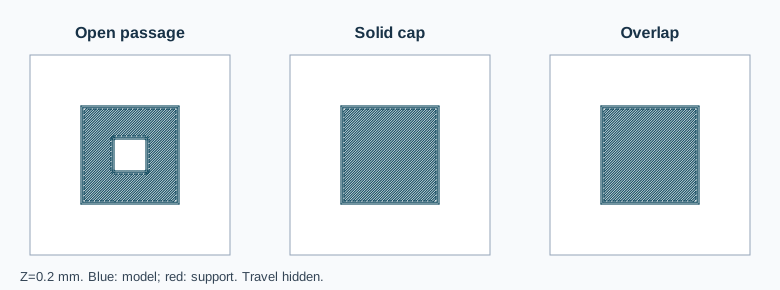
The open-channel G-code preserves the passage on its first and middle layers. The capped and overlapping controls produced byte-identical G-code here, despite different source topology. A slicer preview is therefore essential to judge this particular outcome. A zero-open-edge count alone cannot distinguish these causes.
Reproduce the layer result, then choose a correction
These controls were sliced in PrusaSlicer 2.9.6, centred on its default 200 × 200 mm bed, with a 0.4 mm nozzle, 0.45 mm extrusion width, 0.2 mm first and subsequent layers, two perimeters and 100% rectilinear infill. The centre test checks positive-extrusion segments within 1 mm of X/Y=100 mm. All coordinates are interpreted as millimetres; no physical print was made.
- Inspect the original in the STL Viewer. If a cap is present in the source, change the CAD or mesh copy to restore the intended passage. Fixing a missing surface is a different task.
- Use STL Print Preflight to review shells and open edges. Multiple or crossing solids require visual inspection or a deliberate Boolean union/subtraction; this check does not certify that a cavity is clear.
- If the source passage is intact, inspect the first layer where its paths vanish. Compare its actual width with your profile's nozzle and line width, then test a revised design or reviewed slicer setting. Do not scale a functional part blindly.
- Reopen the saved STL and slice it again. Check the complete channel through successive layers, not one screenshot or an edge count.
The wall-thickness guide owns thin-feature measurement and a separate retained perimeter experiment. This guide addresses an intended void becoming solid paths. Software paths do not establish final dimensional accuracy or a successful print.
FAQ
Can a watertight STL still have the wrong opening?
Yes. A capped solid and a correctly closed channel can both have zero open edges while producing different toolpaths.
Does one clear layer prove the whole passage remains open?
No. Inspect successive layers through its full height in the target slicer and profile.