
3MF print preparation guide
How to Check 3MF Wall Thickness for 3D Printing
Substantially updated 2026-10-16. First published 2026-09-06.
A 3MF wall check must use the geometry actually placed in the build. Declared units, repeated instances and scale transforms affect what is measured; a combined-scene sample can also hit a neighbouring part.
1. Read the declared unit and resolved build
A mesh resource is stored geometry. A build item places that resource, possibly more than once, and can apply a transform. Supported nested components are also resolved. The 3MF Wall Thickness Checker shows the declared unit, build-item count, placed-mesh count and resolved triangle count. A missing unit uses the 3MF millimetre default; unsupported required or recommended extensions stop the local check.
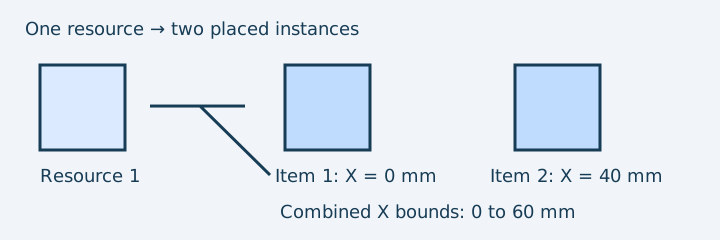
The resolver applies component and build transforms before converting coordinates to millimetres. This checker has no source-unit override: its Review threshold, sampled distances and heatmap are all in mm, even when a package declares inches.
2. Worked control: one resource, two scales
Load the two-scale 3MF control. Its one closed slab resource is designed at 0.8 × 10 × 10 mm. The build places it once unchanged and once at uniform 50% scale, translated 30 mm in X after scaling. The second placed slab therefore has source-derived dimensions of 0.4 × 5 × 5 mm. The instances are separated, so this positive control avoids a nearby cross-body hit.
| Placed item | Resolved X bounds | Designed X thickness |
|---|---|---|
| Full scale | 0 to about 0.8 mm | 0.8 mm |
| Half scale | 30 to about 30.4 mm | 0.4 mm |
With a 0.6 mm review threshold, the current combined-scene ray method measured 24 of 24 attempted samples, with four below threshold and none unmeasured. The smallest measured sample was about 0.39999 mm; four other short-axis samples were about 0.79999 mm. Other faces measured roughly 5 or 10 mm because their normals cross the larger slab dimensions. These are actual software observations from 16 October 2026, not a complete minimum-wall proof or physical print. The example record retains the fixture and reproduction settings.
3. Nearby parts can change a sample
The checker casts rays through a combined placed triangle scene and does not retain a per-instance identity in the thickness report. A hit on a neighbouring part can describe an assembly gap rather than a material wall. Translation leaves an isolated part's own wall unchanged, but moving a neighbour can change which surface a ray hits. An open surface may yield no accepted hit. Inspect visual cross-sections to distinguish material boundaries from empty clearance; that viewer does not measure a section.
4. Follow the checker controls
- Choose a supported, unencrypted mesh-based 3MF or load the public control locally.
- Confirm its declared unit, build count and resolved triangle count against the original application.
- Enter a Review threshold (mm) and run the sampled check.
- Read attempted, measured, below-threshold, unmeasured and unsampled counts outside the heatmap. Red means below threshold; orange is from the threshold to below 1.25 times it; blue/green is at or above that boundary; grey includes unmeasured and unsampled triangles.
- Compare important locations with the source geometry and native sliced layers.
A threshold change clears the prior report. A zero below-threshold count is only a statement about measured samples. If no sample is measured, the tool provides no wall estimate.
5. Verify before editing the source
Keep the original 3MF. Check its build items and transformed dimensions in the authoring application, make a targeted source edit where needed, then compare a newly saved resolved copy with the native slicer preview. Do not flatten to STL if you need 3MF package identity, project settings, materials or declared units. For process and feature-use decisions, use the wall-thickness guide.