
3D model inspection guide
How to Inspect STL and 3MF Cross-Sections Before Printing
Substantially updated 2026-10-27. First published 2026-09-12.
A cross-section view helps you inspect internal walls, channels and separate parts. The InspectMesh viewer clips the visible mesh; it does not create an intersection contour, cap the cut, measure a section or prove that the model is a valid solid.
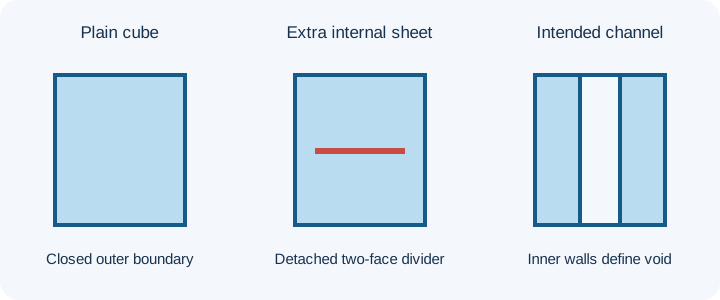
Choose a known wall or channel
Start with a feature whose intended source dimensions you know. The open-through-channel STL control can help you follow an empty passage; compare it with the source model rather than treating a drawn diagram as measured output. Open an STL in the STL Viewer or a supported resolved 3MF in the 3MF Viewer. STL requires a confirmed physical unit; supported 3MF geometry uses its declared unit and placed build transforms.
Move the cut through the feature
- Rotate the outside view so the feature and model axes are clear.
- Choose Inspect cross-section under the viewer controls.
- Select the X, Y or Z Cut axis, then move Cut position from 0% to 100% across the displayed bounds. The percentage is a position, not a physical thickness.
- Rotate and zoom the exposed view. Toggle Show cut-plane guide when its location helps explain the current cut.
- Repeat at nearby positions: one plane can miss a narrow local feature.
Record a known cut without treating it as a measurement
For a bounded repeatable location, open the 40 × 30 × 10 square-through-opening block as millimetres. Choose Cut axis Z and Cut position 50% across its 0..10 range: the source-coordinate location is Z=5 mm. Move through nearby positions to inspect the passage rather than accepting one picture. The local topology observation reports zero exposed edges and supported material volume for this generated block; it is separate from a browser clipping observation.
| Field | Known reference / remaining check |
|---|---|
| File / unit / placed scope | square-hole-8mm.stl; agreed mm; whole STL geometry |
| Axis / UI position / coordinate | Z / 50% / Z=5 mm, derived from known 0..10 bounds |
| Intended feature | 8 mm square empty passage, surrounded by material |
| Visible observation | Record the actual exposed view and nearby positions; the schematic is not a captured result |
| Unresolved check | All unsampled regions, physical access, process suitability and final slicer layers remain separate |
An interior opening in this clipped picture can belong to an intact material boundary in the saved file. Inspect the full region and run the appropriate mesh check before calling it a missing face. Use the hollowing guide for the design decision; this guide owns operating and interpreting the clip.
Identify material boundaries and empty space
Look for the two surfaces bounding a solid web or enclosure wall. A passage between surfaces is empty clearance, even when a normal ray from one part could hit another part across that gap. Open edges, internal sheets and overlaps can make a clipped view ambiguous. The viewer hides geometry on one side of a plane; it does not add a closed cap, produce a true intersection outline or calculate the distance between exposed surfaces.
Compare with source dimensions
Use CAD dimensions or a suitable point-to-point measurement for the intended feature, after checking units and transforms. Then use the wall-thickness guide to decide whether a solid wall serves its purpose. The STL and 3MF checkers provide separate sampled ray estimates and coverage counts; neither turns this visual clip into a complete section measurement.
A clip can also expose an internal channel so you can identify openings and material boundaries before checking support access. It does not simulate tool reach or removal. Use the internal support-access workflow for that separate decision.
Decide the next check
If the opening or wall differs from source CAD, inspect mesh quality or rebuild the export. If geometry matches, slice the final copy and inspect the same region's actual paths. A clip alone cannot establish watertightness, printability or functional strength.