
STL mesh guide
How to Check an STL File for Errors
Substantially updated 2026-10-29. First published 2026-09-05.
An STL error report describes a finding, not the correction your design needs. Start by identifying which check ran, where the finding occurs and whether the affected surface or part is intentional. Then choose one focused action and compare the saved result with the original.
Start with a completed result
A failed parse, cancelled job or missing report is not a clean mesh result. For a broad browser-local screen, use STL Print Preflight. For the supported server mesh analysis, use STL Quality Checker and review its upload disclosure. Keep the method, unit assumption and settings with the result; the two workflows need not group components identically.
Work through a known finding before editing your own model
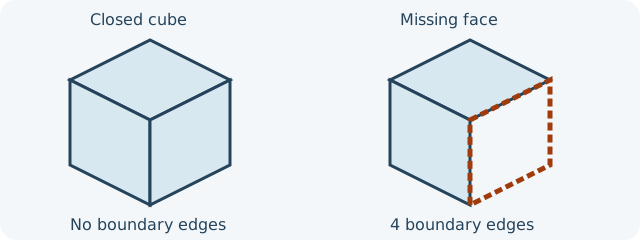
| Local preflight observation | Meaning and confirmation | Focused next step |
|---|---|---|
| Four open edges on the 10-triangle control | One square face is absent; ask whether this surface was intended to be closed | Inspect the opening before filling |
| One duplicate; three over-shared edges | 13 facets in total; one overlaps an existing facet. This is distinct from winding | Compare independent duplicate and winding controls |
| Three winding edge conflicts, no open edges | 12 triangles still cover the surface, but one triangle is reversed | Correct orientation on a copy |
| Two components; zero open/over-shared edges | Separate or crossing closed shells; intersections were not checked | Review component intent and crossing surfaces |
| 12 of 36 bar samples below 1.2 mm | Measured rays screen thin directions, not every feature or physical strength | Compare geometry with actual slicer paths |
| Unavailable volume or skipped fit | No supported value or selected printer; these are not zeros or passing checks | Review volume conditions and unit assumptions |
- Load the closed cube from the example library and select millimetres: 12 triangles, zero open edges and 8,000 mm³.
- Explicitly replace it with the face-removed control: 10 triangles, four open edges and unavailable volume.
- Keep the original and decide whether replacing that face matches the design. Reopen a deliberately corrected copy and compare the affected region, dimensions and sliced layers; an empty or failed report does not verify correction.
A parse failure belongs to file/format diagnosis, not automatic repair. Keep the completed finding and its method with the chosen next action.
Read related findings together
Several counts can describe the same defect. An extra copy of one triangle can create both a duplicate finding and edges shared by too many faces. Conversely, separate closed pieces may be intentional assembly parts. Inspect the affected region and the source design before deciding that a smaller count represents an improvement.
Choose one next action
| Finding or state | First decision | Next action |
|---|---|---|
| Exposed boundary | Should this surface be closed in the design? | Inspect open boundaries |
| Over-shared edge | Is there a redundant face or a more complex surface junction? | Inspect edge sharing |
| Duplicate or degenerate face | Is a supported cleanup appropriate for this file? | Review conservative cleanup |
| Disconnected component | Is it an intended object or an unwanted fragment? | Review pieces before removal |
| Unexpected physical size | Which unit and reference dimension were intended? | Check size and units |
| Parse failure, missing or unsupported result | Which input or method is missing? | Review the broader preparation decision |
Verify the actual saved copy
Reopen the downloaded or re-exported file, not the unchanged preview of the original. Compare the affected surface, required parts and dimensions, then repeat the relevant check. Finally inspect the sliced layers under the intended profile. A successful export or lower issue count alone does not establish that the required geometry survived.
When to return to the source model
Stop when the intended surface, connection or cavity cannot be established from the mesh. Send the finding and affected region back to the model author rather than guessing a repair. Use the print-readiness guide for the wider process decisions and the checklist to record unresolved work.
FAQ
Can an STL look correct but still contain errors?
Yes. A viewer can show an ordinary silhouette while edge sharing, duplicate faces or winding need closer inspection.