
STL splitting diagnosis
STL Split Failed? Diagnose the Cut Before Retrying
A failed STL split can come from the source mesh, the selected plane, an unsupported cut contour or a processing problem. Read the actual error first. Change one relevant condition and verify the saved outputs; repeating the same cut or applying unrelated repair does not identify the cause.
Find the stage that failed
| Observation | First check | Relevant next action |
|---|---|---|
| File cannot be read locally | Non-empty ASCII or binary STL, .stl name and 25 MiB limit | Try the known cube below; resolve parsing before geometry diagnosis. |
| Submission or job fails without a geometry finding | Created, upload, processing or failed status and the displayed error | Preserve file, axis and percentage. Retry once when appropriate; do not invent a mesh cause for a timeout. |
| Input is rejected for mesh condition | Open edges, over-shared edges, invalid coordinates, duplicate or degenerate triangles and winding | Review the source in the relevant checker; correct only an understood problem. |
| Plane does not produce a usable division | Displayed source-coordinate plane against bounds and material | Choose an interior plane that genuinely crosses material and leaves geometry on both sides. |
| Cap or contour is unsupported | The section shape and actual split error | Inspect a nearby plane or return to CAD. A different plane is not guaranteed to work. |
| Job succeeds but one output is unusable | Both downloads, bounds, closure and intended features | Reopen both exports. Job completion is not an assembly-ready certificate. |
The service currently distinguishes a split geometry rejection from a general processing failure, but it does not expose a separate code for every row. Preserve the real message. A generic processing failure or interrupted status poll does not prove that the mesh or plane is at fault.
Replay one successful control
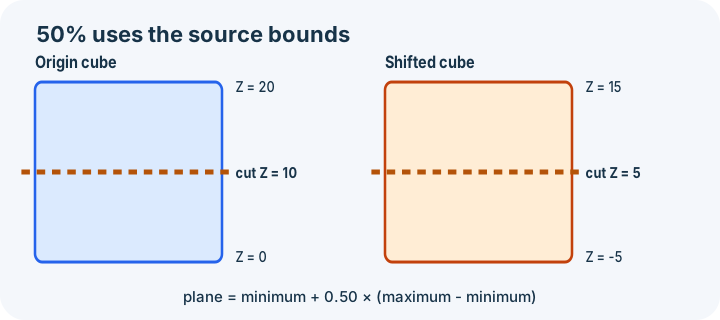
Download the owned closed 20-coordinate-unit cube, then load it locally in the splitter. Choose Z at 50% and explicitly submit. The source Z bounds are 0..20, so the actual plane is Z=10. Under an explicit millimetre assumption, the designed span of each export is 20 × 20 × 10 mm.
| Evidence | Lower Z export | Upper Z export |
|---|---|---|
| Analytic expectation | X 0..20, Y 0..20, Z 0..10 | X 0..20, Y 0..20, Z 10..20 |
| Observed after binary write and re-import | 20 × 20 × 10; stated bounds retained; validation passed | 20 × 20 × 10; stated bounds retained; validation passed |
The current processor was exercised through the real split application path, wrote both binary STL files, reopened them and checked its supported validity, closure and edge-incidence conditions. Coordinates were preserved rather than recentered. Cap triangulation can change, so triangle count is an observation, not a required constant.
Download the exact local-run lower-Z output, upper-Z output and dated observations. The evidence records input and output hashes, settings, source revision and reproduction command. These observations were made locally on 17 October 2026; they do not certify the deployed service revision.
Compare a rejected input with a difficult plane
The generated open-face cube has four boundary edges. The current precondition screen rejects it before cutting because the input validation has an error. That differs from a file which cannot be parsed: the open cube is readable geometry, but it is not an accepted split source.
The closed hollow-channel control is a valid one-component boundary surface with no open or over-shared edges. Its outer bounds are 20 × 20 × 20, its passage is 12 × 12, and its analytic material volume is 5,120 cubic coordinate units. A central Z=10 cut produces an outer and inner contour. The current splitter rejects these nested contours instead of filling across the passage. This is an algorithm boundary, not an open-mesh diagnosis.
Moving a plane can avoid a vertex, edge or coincident feature, but it changes the seam and retained geometry. For example, moving a proposed plane from Z=10 to Z=9.8 shifts the seam by 0.2 source units; save the Z=10 setting for comparison. It does not remove the tube's nested-contour condition, and a nearby plane is not a promise of acceptance.
What not to change blindly
Global scaling changes outside dimensions, holes, wall material and assembly interfaces. It is not a neutral response to a contour rejection. Use the scaling workflow only when size is the intended change.
Removing disconnected pieces can delete intentional parts, locating features or text. Use the component interpretation guide and retain every piece until its purpose is understood.
Filling holes may close an intended channel, drain, vent or socket. A cleaner issue count does not establish design intent. Follow the hole diagnosis and compare the result with the source design.
When to return to the source model
Use source CAD or a suitable native-mesh workflow when the seam contains complex openings, when interfaces or load paths are critical, when connectors must be designed, or when the relationship between solids is ambiguous. InspectMesh provides conservative axis-aligned planar cutting; it does not run a general Boolean union, repair source intent or design a joint.
Verify the downloaded pair
- Open both files again rather than inspecting only one download.
- Name the files with side, axis and model revision.
- Keep the physical unit assumption explicit because STL stores no unit.
- Compare bounds, seam coordinate and retained features with the intended cut.
- Check every required closed region; two exports need not mean exactly two connected objects.
- Confirm an intended opening remains open.
- Review final placement, supports and toolpaths in the target slicer.
If the two exports need a joining feature, continue with the alignment-pin planning and coupon workflow.