
3D print preparation guide
How to Split an STL File for 3D Printing
Substantially updated 2026-10-17. First published 2026-09-05.
Split a model when a practical one-piece orientation does not meet your size or assembly needs. Choose the seam and joining method together, make a supported cut, then verify both saved pieces before slicing them separately.
1. Decide whether a cut is needed
First distinguish three different operations. Orienting changes how one connected model sits on the bed. Selecting components retains or removes geometry that is already disconnected. Cutting crosses a connected body and creates new boundary surfaces which must be capped.
Use the printer-fit workflow to test the intended one-piece orientation and real allowances. If the source already has multiple regions, use the disconnected-parts guide before cutting. Do not create a new seam merely to separate geometry which is already separate.
2. Choose the seam and assembly direction
| Seam candidate | Trade-off | Check before cutting |
|---|---|---|
| Visible show surface | May solve fit but leaves a finishing and alignment demand in view. | Surface continuity, support marks, finishing access and acceptable seam direction. |
| Thin neck | Creates a small contour but may leave little material for alignment or load transfer. | Connector root, surrounding wall material and insertion access. |
| Mounting interface | Can preserve a broad face but may disturb a dimension-critical hole or datum. | Keep the functional interface on one side where practical; verify hole and fastener access. |
| Broad section | Offers a large contact area but may expose complex openings or a long visible seam. | Contour support, cap integrity, assembly direction and flatness. |
Decide how the parts approach one another before placing pins, keys or fasteners. A seam that fits the printer may still trap a connector or require insertion through another feature. Avoid critical sealing surfaces, threads, thin details and known high-load paths unless the source design accounts for the joint.
3. Understand a planar capped cut
The current InspectMesh STL Splitter uses an X, Y or Z plane at a percentage through the source-coordinate span. It clips intersected triangles, assembles supported closed contours, caps the new faces and reopens both binary STL exports for validation. It preserves source coordinates and does not add alignment pins, sockets, arbitrary-angle cuts or Boolean repair. Nested contours such as a passage through the seam are conservatively rejected. Use the failed-cut diagnosis for parsing, source-validation, plane, contour and processing failures.
4. Worked example: inspect both saved halves
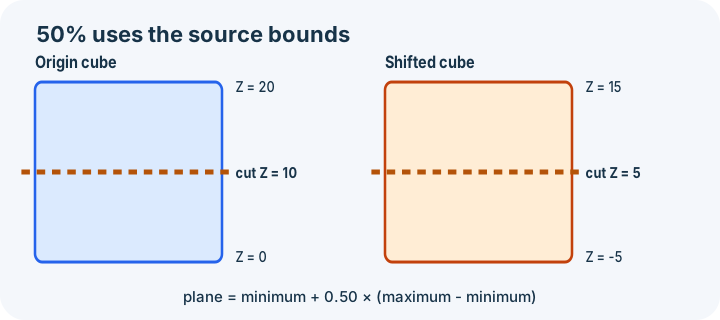
Download the closed 20-coordinate-unit cube and load it locally. Choose Z at 50%. The source bounds are Z=0..20, so the displayed plane is Z=10. Under an explicit millimetre assumption, each intended span is 20 × 20 × 10 mm.
In the current local application-path control, the processor wrote both exports, reopened them and observed lower-Z bounds X 0..20, Y 0..20, Z 0..10 and upper-Z bounds X 0..20, Y 0..20, Z 10..20. Both passed the supported closure and validity checks. The outputs were not recentered. Triangle counts may change with clipping and cap triangulation and are not a reconstruction requirement.
5. Plan alignment separately
Choose a flat joint, loose dowel, integrated peg, key or hardware workflow as a separate design decision. Keep nominal clearance distinct from measured printer error, and do not scale mating pieces independently as a fit fix. The alignment-pin guide provides the dimensional arithmetic, surrounding-material checks and an owned three-piece coupon.
6. Recheck, orient and slice each piece
- Keep the original model and name each export with side, axis and revision.
- Reopen both exact downloads; confirm common scale and explicit unit assumption.
- Compare bounds and the seam coordinate with the intended lower and upper regions.
- Check closure, every required connected region and all retained openings or interfaces.
- Run a fresh printer-fit check for each output in its intended orientation, including actual brim and support allowance.
- Review native sliced layers and toolpaths around the cap and any connector.
- Test-fit the assembly without forcing before finishing or permanent joining.
A valid pair of capped mesh exports does not prove printability, alignment or joint strength. Return to source CAD when the seam, connector or load path needs design control that the planar splitter does not provide.